
Settings & Preferences
In the top right corner you can access Settings and Preferences.
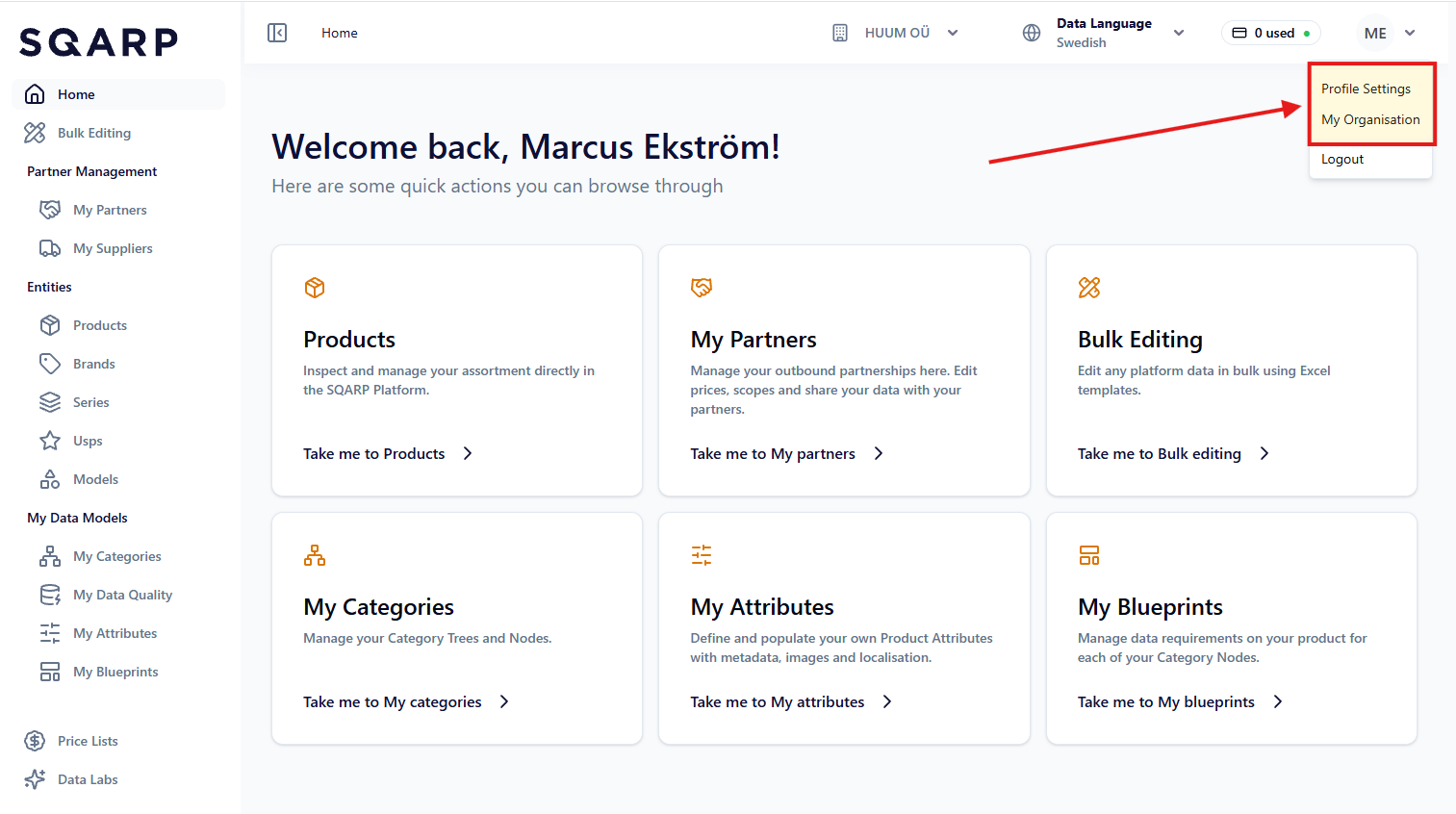
Profile Settings
In the top right corner you can go to your Profile Settings. Here you can change everything relating to your personal account.
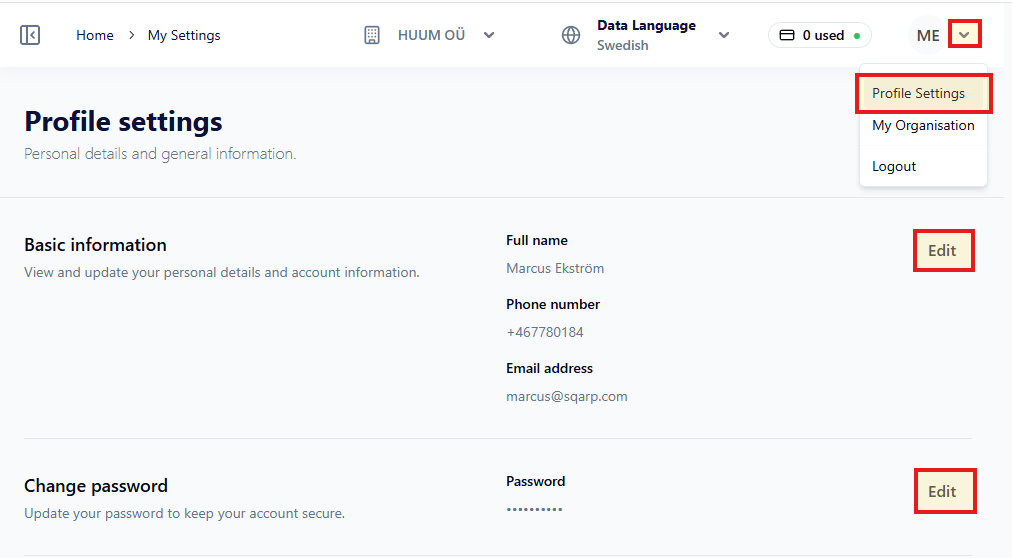
Edit name or phone number
On the page for Profile settings you can under Basic information change Name and/or Phone number by clicking on Edit. Your email address can not be changed.
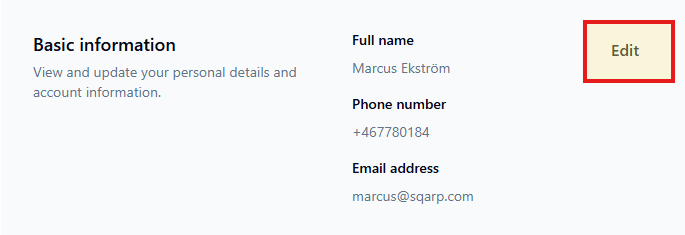
Change password
On the page for Profile settings you can change your password. You will be asked to enter your currect password and your new password.

My Organisation
In the top right corner you can go to My Organisation. Here you can handle settings, preferences and configurations that is global for everyone accessing your organisation.
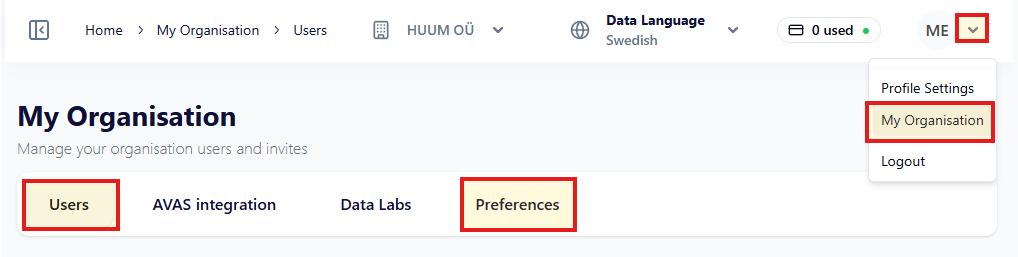
Users
On the Users tab you can find a list of all active and invited users.
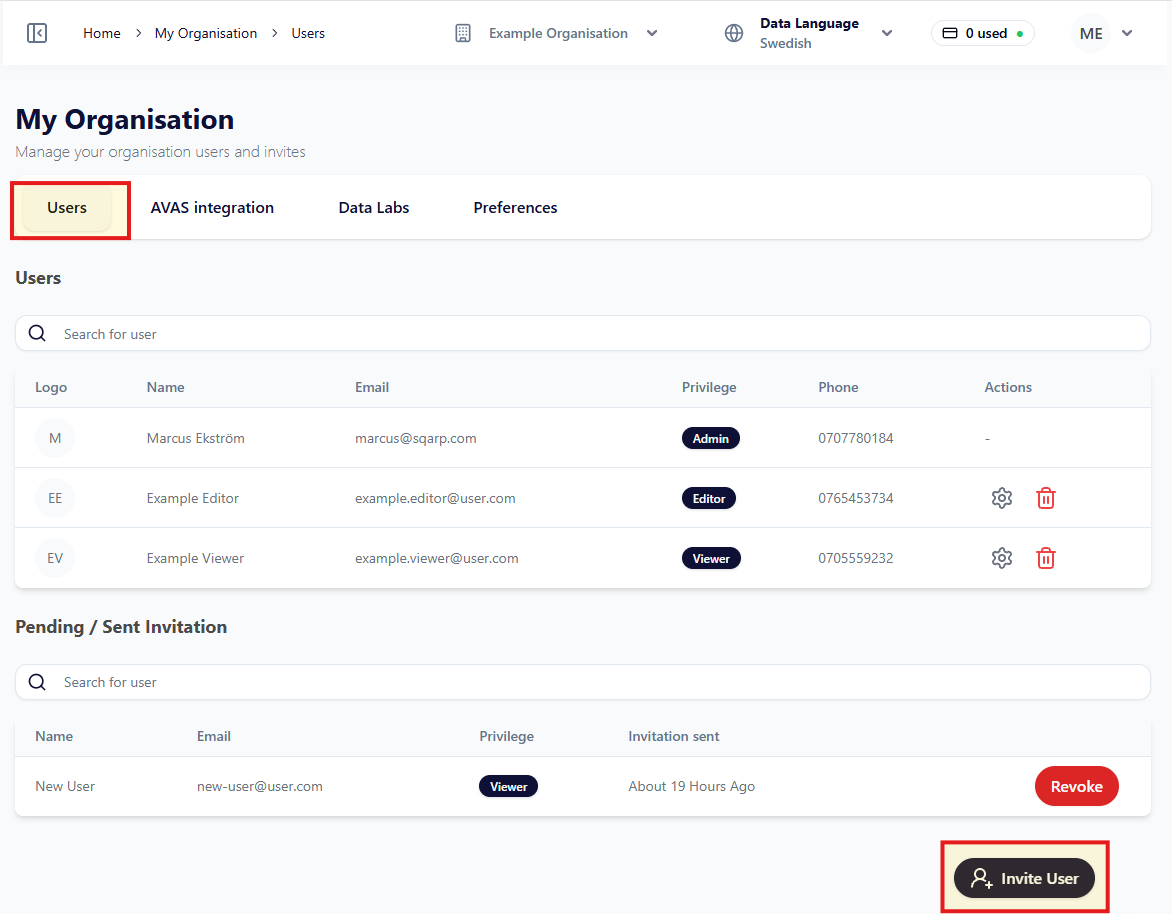
Invite new user
Click on Invite User on bottom right corner. You will submit the new users email address and select it's users privileges (Admin, Editor, Viewer). The new user will receive a registration link to the submitted email address.
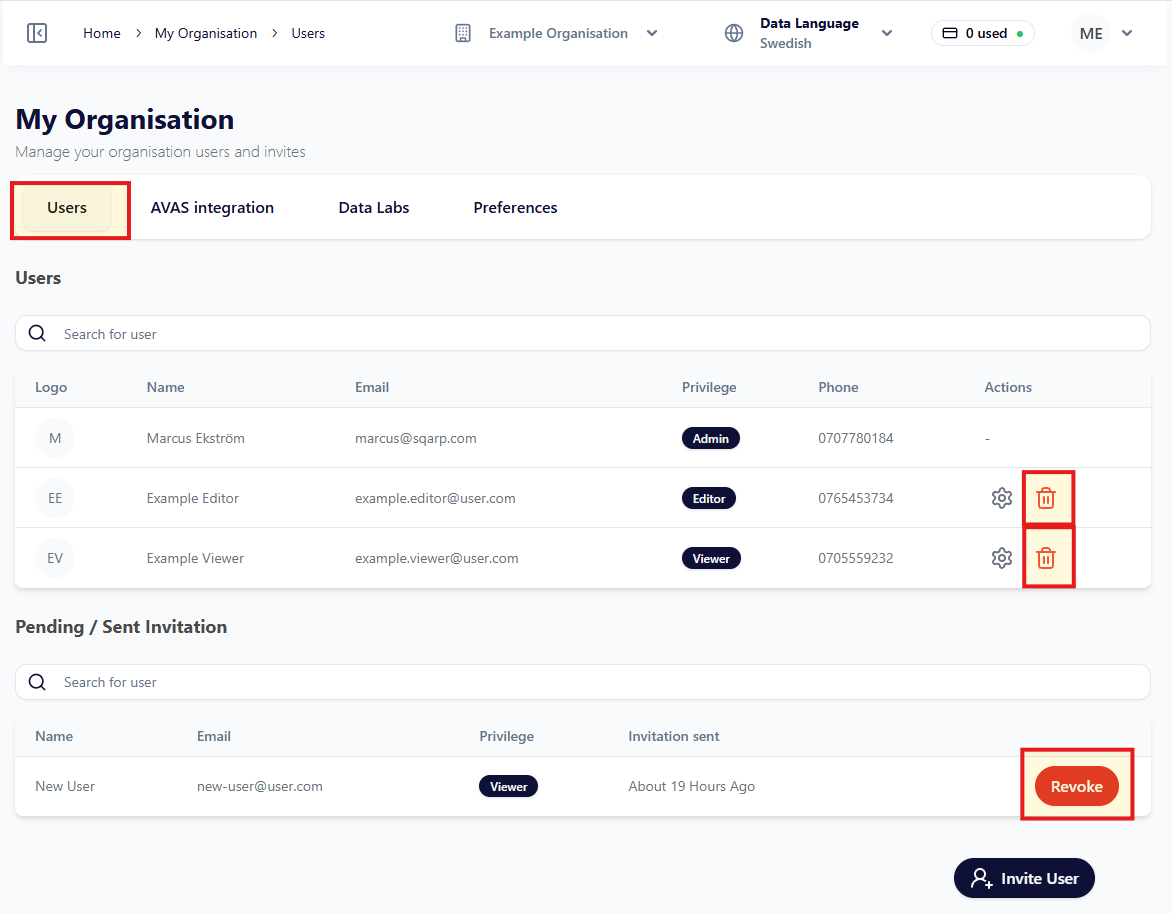
Delete user
By clicking on the bin-symbol you can delete users from the organisation. You can also remove a pending invitaiton by clicking Revoke. You need to be a Admin to delete or revoke users. To delete a Admin-user, contact us on info@sqarp.com.
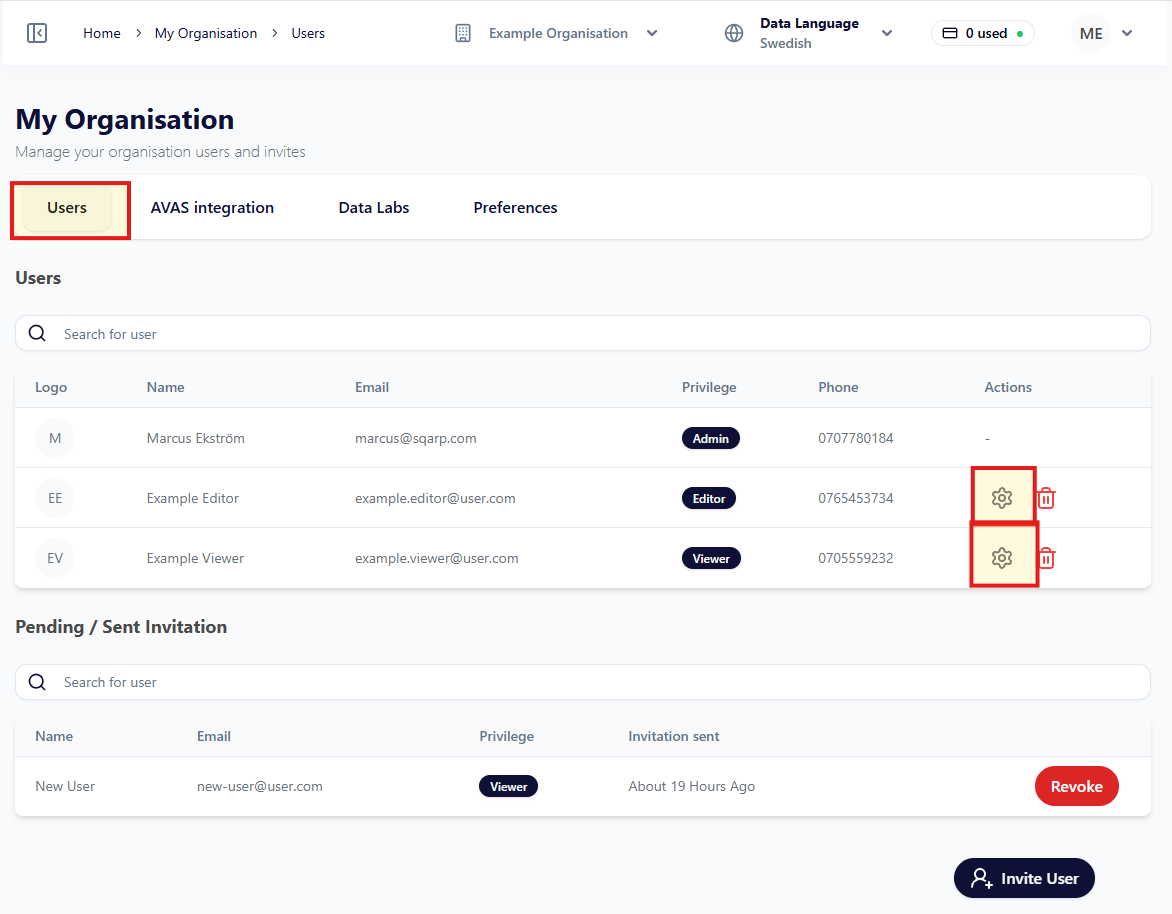
Change user roles
By clicking the cog-symbol you can change users privileges (Admin, Editor, Viewer). You need to be Admin to change user privileges. To change user privileges on a Admin-user, contact us on info@sqarp.com.
Preferences
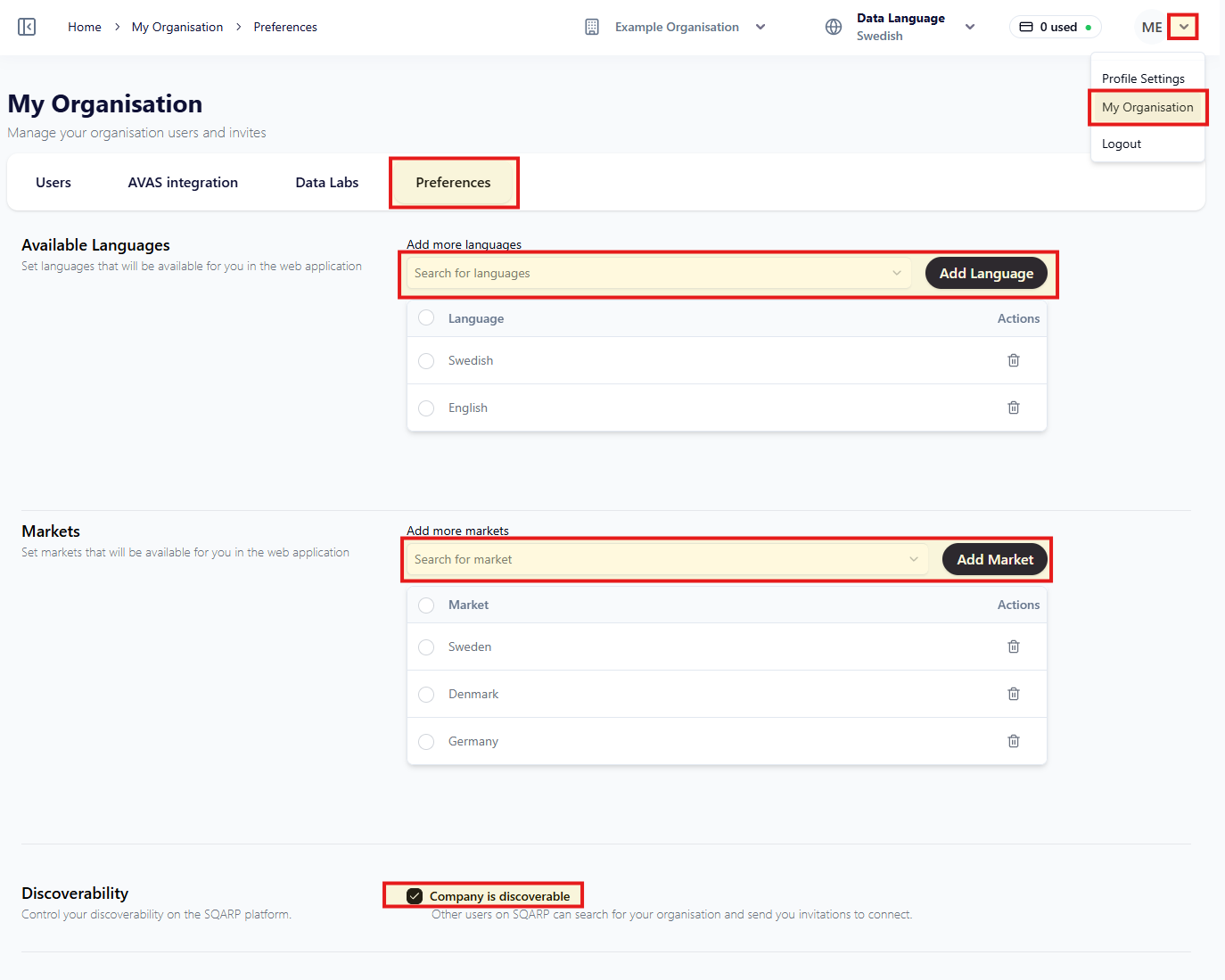
On the Preferences tab you can find organisational settings regarding language, market and discoverability.
Languages
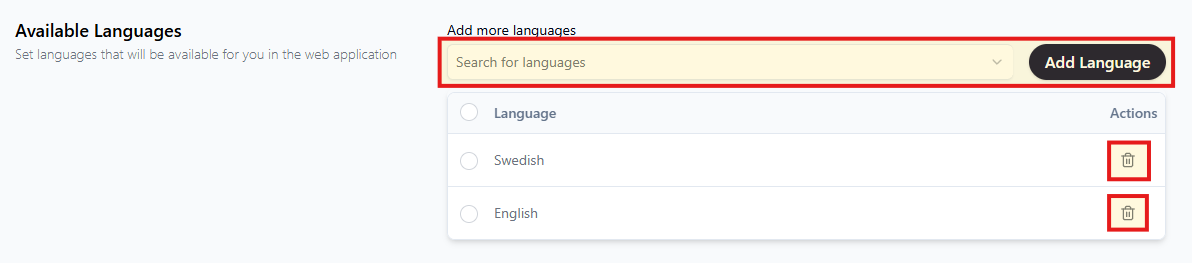
Products can be created and updated with differet languages. Under Available Languages you can add new languages by selecting the language in the dropdown and clicking Add Language.
You can remove a languages by clicking the trash-symbol. No information will be removed. The language-dropdown in the top menu will be hidden. The language will also be hidden from all other dropdowns in the platform.
Markets
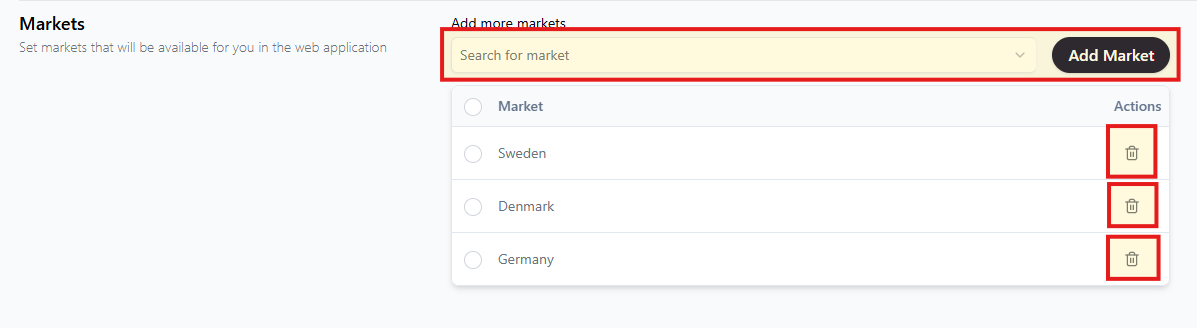
Supplier information can be submitted on the products for different markets. To add a new market, select the market in the dropdown and click Add Market.
You can remove a market by clicking the trash-symbol. No information will be removed. The market will be hidden from all dropdowns in the platform.
Discoverability
Organisations can browse suppliers to send invitations for partnerships. Under the section Discoverability you can decide if your organisation will be visiable or not.
